
Difference: CommandLineHowTo (1 vs. 4)
Revision 42008-03-09 - LaurenJackson
| Line: 1 to 1 | ||||||||
|---|---|---|---|---|---|---|---|---|
| ||||||||
| Changed: | ||||||||
| < < | <-- Ready to Review --> | |||||||
| > > | <-- Ready to Review - done - Lauren--> | |||||||
Command Line How-To | ||||||||
Revision 32008-02-27 - MichaelOSullivan
Revision 22008-02-27 - MichaelOSullivan
| Line: 1 to 1 | ||||||||
|---|---|---|---|---|---|---|---|---|
| ||||||||
| Changed: | ||||||||
| < < | Command Line How-To for Windows | |||||||
| > > | <-- Ready to Review --> | |||||||
| Changed: | ||||||||
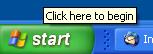
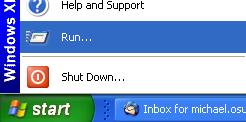
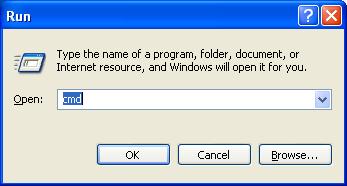
| < < | Instructions for starting a command line application in Windows:
Navigating using the Command LineTo change drives, e.g., from {\tt C:} to {\tt E:} simply type {\tt E:} at the command line prompt. | |||||||
| > > | Command Line How-To | |||||||
| Changed: | ||||||||
| < < | ???Add example image here??? | |||||||
| > > | For Windows | |||||||
| Changed: | ||||||||
| < < | To change directories in a drive type {\tt cd} and the directory path, e.g., to get to the AMPL directory simply type {\tt cd | |||||||
| > > | Instructions for starting a command line application in Windows:
| |||||||
| Changed: | ||||||||
| < < | ???Add example image here??? | |||||||
| > > | Navigating using the Command Line | |||||||
| Changed: | ||||||||
| < < | <-- comment form --> | |||||||
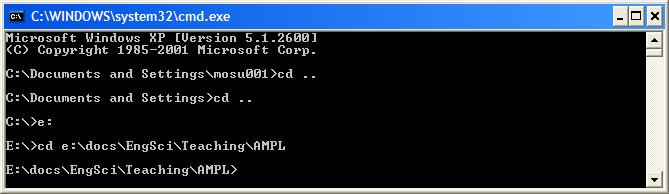
| > > | To change drives, e.g., from C: to E: simply type e: (or E:) at the command line prompt. | |||||||
| Changed: | ||||||||
| < < | -- MichaelOSullivan - 27 Feb 2008 | |||||||
| > > | To change directories in a drive type cd and the directory path, e.g., to get to the AMPL directory simply type cd | |||||||
| Changed: | ||||||||
| < < |
| |||||||
| > > | To move up a directory (i.e., to the parent directory) type cd ... | |||||||
| Changed: | ||||||||
| < < |
| |||||||
| > > |  | |||||||
| Changed: | ||||||||
| < < |
| |||||||
| > > | If you get stuck, try typing help. | |||||||
| Changed: | ||||||||
| < < |
| |||||||
| > > | -- MichaelOSullivan - 27 Feb 2008 | |||||||
| ||||||||
Revision 12008-02-27 - MichaelOSullivan
| Line: 1 to 1 | |||||||||||||
|---|---|---|---|---|---|---|---|---|---|---|---|---|---|
| Added: | |||||||||||||
| > > |
Command Line How-To for WindowsInstructions for starting a command line application in Windows:
Navigating using the Command LineTo change drives, e.g., from {\tt C:} to {\tt E:} simply type {\tt E:} at the command line prompt. ???Add example image here??? To change directories in a drive type {\tt cd} and the directory path, e.g., to get to the AMPL directory simply type {\tt cd<-- comment form -->-- MichaelOSullivan - 27 Feb 2008
| ||||||||||||
View topic | History: r4 < r3 < r2 < r1 | More topic actions...

 Copyright © 2008-2026 by the contributing authors. All material on this collaboration platform is the property of the contributing authors.
 Ideas, requests, problems regarding TWiki? Send feedback